Advanced Slicer Techniques: Variable Layer Height
Variable layer height is an advanced slicing technique that allows you to change the thickness of layers dynamically throughout a single print. Instead of printing the entire model at a fixed height (like 0.20mm), the slicer uses thinner layers (like 0.08mm) on sloped or detailed sections, and thicker layers (like 0.28mm) on vertical, flat walls. This offers the best of both worlds: high-resolution details where it matters, and fast printing speeds on vertical structures.
How Variable Layer Height Works
In standard slicing, thick layers create a visible "staircase effect" on curves and gentle slopes. For example, a sphere sliced at 0.2mm will have very rough, stepped layers at the top dome. If you slice the entire sphere at 0.08mm to fix this, print time will triple. Variable layer height automatically analyzes the geometry, applying micro-thin layers to sloped curves to smooth them out, while keeping thick layers on vertical walls. This saves up to 50% in print time while retaining a premium aesthetic.
Slicer Settings for Variable Layer Height
To configure variable layer height in PrusaSlicer, Bambu Studio, or OrcaSlicer:
- Import your model and click the Variable Layer Height icon in the top toolbar.
- Adjust the slider settings. The default limit is usually set between 0.08mm (min) and 0.28mm (max) for a standard 0.4mm nozzle.
- Click Adaptive to let the slicer compute the curves automatically, or manually paint the layer heights with your mouse.
- Review the sliced preview to see the color-coded layer heights. Smooth transitions prevent layer bonding issues.
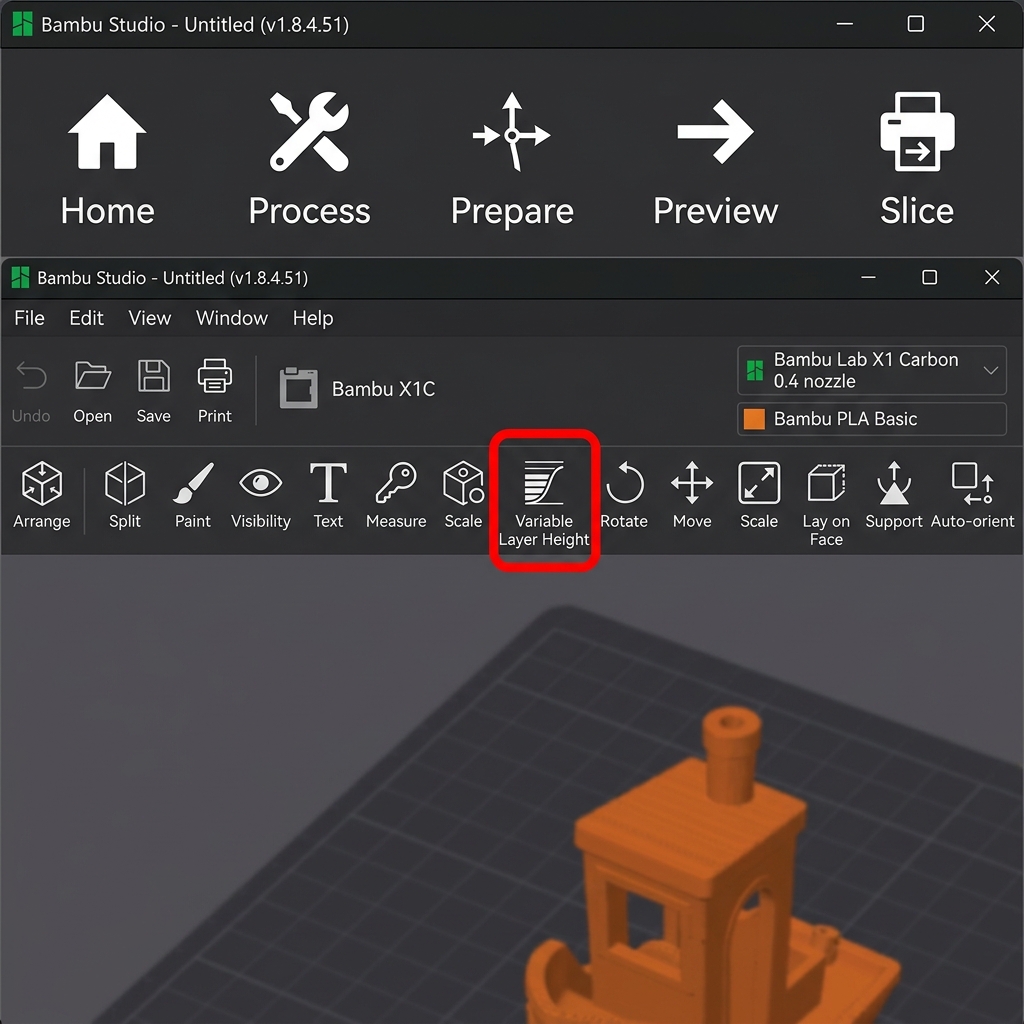
Selecting the Variable Layer Height button on the Bambu Studio top toolbar (highlighted in red)
Optimizing DesignForge Models with Adaptive Layers
Applying this technique to our templates results in massive quality improvements:
- Nursery & Kids Nameplates: These designs often feature rounded fonts and cartoon graphics with sloped edges. Use variable layer height to slice the flat base plate at 0.24mm (speeding up the print) and the curved, decorative text at 0.12mm. This makes the text look smooth and professional.
- Teacher Desk Nameplates: Professional nameplates have angled bevels. Slicing these bevels at 0.12mm layer thickness eliminates visible staircasing, making the desk sign look like molded acrylic.
- Keychains & Pet Tags: Keychains are usually flat on top with vertical walls, meaning they do not benefit much from variable layer height. Keep them at a fixed 0.16mm or 0.20mm layer height to ensure maximum print speed and structural strength around the ring loop.
- Cake Toppers: The lettering on cake toppers is printed vertically. Slicing at a fixed 0.20mm layer height is recommended to keep print times low, unless the topper has a 3D dome profile.
Recommended Print Settings for DesignForge Templates
To ensure high success rates and perfect visual finishes, use the following tested print profiles for our 3D nameplate, keychain, pet tag, and cake topper templates. Adjust your temperatures based on your specific filament manufacturer recommendations.
| Design Type | Filament Type | Layer Height | Infill Profile | Wall Count | Nozzle/Bed Temp | Slicer Optimization & Finish |
|---|---|---|---|---|---|---|
| Nursery Desk Nameplate | PLA | 0.20mm base / 0.12mm text | 15% Gyroid | 3 Walls | 200°C / 60°C | Enable variable layer height on letters; 100% cooling. |
| Teacher Desk Nameplate | PLA or PETG | 0.20mm | 15% Gyroid | 3 Walls | 200°C (PLA) / 240°C (PETG) | Enable Ironing on topmost surfaces only (30mm/s, 10% flow). |
| Kids Desk Nameplate | PLA | 0.20mm | 20% Gyroid | 3 Walls | 200°C / 60°C | Use multi-color pauses at layer transitions for colored letters. |
| Custom Keychain | PETG or TPU | 0.16mm | 30% Gyroid | 3 Walls | 240°C (PETG) / 225°C (TPU) | Slow down outer walls to 40mm/s for small keyring loop strength. |
| Custom Pet Tag | PETG | 0.16mm | 40% Grid | 4 Walls | 240°C / 75°C | Disable Z-hop to reduce fine hair stringing inside small letters. |
| Cake Topper | Food-Grade PLA | 0.20mm | 25% Concentric | 4 Walls | 200°C / 60°C | Coat prong with food-safe epoxy sealant. Avoid supports. |
Expert 3D Printer's Checklist
Before launching any complex print, run through this quick checklist to ensure maximum success and reduce print failures:
- Bed Leveling: Confirm your bed is trammed and that your Z-offset is dialed in with no visible gaps. Run an auto-level mesh before printing large flat objects.
- Filament Drying: Ensure your spool has been kept dry and stored in a sealed container with active silica desiccant. If printing PETG or TPU, pre-dry the filament.
- Build Plate Adhesion: Wipe down the PEI bed surface with 99% Isopropyl Alcohol (IPA) to dissolve finger oils. Do not use acetone on PEI plates.
- First Layer Inspection: Watch the first layer print completely to verify that the bead line is squishing down nicely and anchoring to the plate.
- Slicer Profile: Check that you have configured the appropriate infill pattern (like Gyroid) and turned off supports for flat items.
- Temperature Calibration: Set your hotend and bed temperatures exactly as recommended for your specific filament brand and polymer type.
- Cooling Fan Speed: Keep the part-cooling fan turned off on the first layer to prevent warping, and set it to 100% on subsequent layers for PLA.
Comprehensive 3D Printing Reference Guide
To help you get the best possible results from the DesignForge STL and 3MF generators, we have compiled a detailed reference guide covering troubleshooting, settings, and material handling. Refer to this matrix when configuring your slicer software (such as Bambu Studio, OrcaSlicer, PrusaSlicer, or Cura).
Ultimate 3D Printing Troubleshooting Matrix
| Issue | Primary Cause | Recommended Solution |
|---|---|---|
| Warping / Corner Lifting | Thermal contraction as plastic cools; poor bed adhesion. | Clean build plate with dish soap; increase bed temperature by 5°C; add a 5mm brim; disable drafts. |
| Stringing / Oozing | Wet filament or incorrect retraction settings. | Dry the filament spool; increase retraction distance by 0.5mm; enable travel moves wipe; lower nozzle temp by 5°C. |
| Under-Extrusion | Clogged nozzle, cracked extruder arm, or low flow rate. | Perform a cold pull to clear clogs; check extruder gears; calibrate extruder E-steps; increase extrusion multiplier. |
| Ghosting / Ringing | Frame vibrations at high printing speeds. | Tighten printer belts; place the printer on a heavy, stable surface; reduce acceleration settings or enable input shaping. |
| Pillowing (Top Surface Holes) | Insufficient top layers or poor cooling. | Increase top solid layers to at least 4; increase cooling fan speed; increase infill density. |
Material Profiles & Settings Reference
Every filament type has different temperature profiles and mechanical properties. Use the table below as a starting point:
| Filament | Nozzle Temp | Bed Temp | Cooling Fan | Key Properties |
|---|---|---|---|---|
| PLA (Polylactic Acid) | 190°C - 220°C | 50°C - 60°C | 100% | Easy to print, biodegrades, minimal warping, rigid, brittle. |
| PETG | 230°C - 250°C | 70°C - 80°C | 30% - 50% | Durable, chemically resistant, UV resistant, prone to stringing. |
| ABS (Acrylonitrile Butadiene Styrene) | 240°C - 260°C | 90°C - 110°C | 0% - 20% | High heat resistance, tough, can be acetone smoothed; requires enclosure. |
| ASA (Acrylic Styrene Acrylonitrile) | 240°C - 260°C | 90°C - 110°C | 0% - 20% | Highly UV & weather resistant, ideal for outdoor parts; requires enclosure. |
| TPU (Thermoplastic Polyurethane) | 220°C - 240°C | 40°C - 60°C | 80% - 100% | Highly flexible, rubber-like, impact resistant; print slowly (15-30mm/s). |
Manifold Design & CAD Best Practices
For custom nameplates and keychains to slice correctly in your 3D printing software, they must have watertight (manifold) geometries. Non-manifold geometry occurs when a model contains open edges, self-intersecting faces, or zero-thickness walls. The DesignForge generator utilizes boolean operations at the code level to merge base plates and letter fonts, ensuring perfect manifold geometry in all downloaded STL and 3MF files. When designing custom parts in CAD programs like Fusion 360, SolidWorks, or OpenSCAD:
- Always use Boolean Joins: Ensure overlapping bodies are combined using union operations before exporting.
- Keep minimum wall thickness: Wall features should be at least two times your nozzle diameter (e.g., at least 0.8mm for a 0.4mm nozzle) to prevent gaps.
- Avoid Zero-Thickness Geometry: Avoid faces that share an edge without a joining volume, as this confuses slicer software pathing algorithms.
Slicer Optimization Guidelines
When preparing your files in Bambu Studio, OrcaSlicer, PrusaSlicer, or Cura, apply these techniques for premium quality:
- Ironing: Enabling ironing runs the nozzle slowly over flat surfaces without extrusion to smooth out ridges. Recommended settings: Ironing speed of 30mm/s, flow rate of 10%-15%.
- Monotonic Fill Pattern: Forces parallel top lines to print in a single direction, eliminating light reflection variations and giving nameplates a uniform surface finish.
- Multi-Color Painting in Slicer: If you download our 3MF files, the color metadata is pre-assigned. You can customize coloring by selecting the "Paint Bucket" tool in Bambu Studio or OrcaSlicer, choosing your colors, and clicking the individual extruded letter blocks to color them instantly before sending to your multi-material system (like the Bambu AMS or Prusa MMU). Learn more about this in our Multi-Color 3D Printing Guide.